How to use Reliance Jio 4g internet on your PC


Hi friends,how are you?As we know that reliance jio 4g is giving us a high speed unlimited internet with unlimited calling for 3 month.Most of people enjoying it through their 4g supported mobile phone,some of them enjoying it through Hotspot. It is easy to use it in laptop with the use of Hotspot but when we come to PC we didn't have Hotspot.So how to do it ? No problem, I will tell you today about it.It's easy.
Many people already know this way but if you are the compliment of those many of people than it will help you.

--------------------------------------------------------------------------- 
Click here for more interesting stuff


---------------------------------------------------------------------------
How to use Reliance Jio 4g internet on your PC /
  How to use your mobile internet on your PC

1. You can connect your Reliance Jio 4g internet with pc using these three ways :-

(i) USB Tethering (ii) Bluetooth Tethering (iii) Wifi Hotspot


"In my thinking USB Tethering is best way for connecting your Reliance Jio 4g internet with pc.SO I will tell you here only about USB Tethering.If you want to know about rest two methods you can comment here.I will tell you in comments."

2. So to  USB Tethering use your  Reliance Jio 4g internet with pc, you have enable you mobile data first.

3. Then connect your mobile with pc using usb cable.Speed also depend on usb cables so try to use mobile's own usb cable.

4. Now a pop up box will appear on your mobile screen.There will be some options you can see like Usb storage, USB Tethering, Charging etc.

5. Now select USB Tethering from them.If pop up box won't appear then you can enable USB Tethering from here.
Settings > Wireless & networks > More>Tethering & portable hotspot

6. Now enjoy Reliance Jio 4g internet on your pc.


 If you like this than subscribe us.
Don't forget to like us on Facebook,Twitter or G+.


[Read More...]


How to Convert Media Files Using VLC


Hi friends, we know that VLC is a best media player.It have many of useful features.We know about some features.But some are hide from us.Today I am introducing one of hide feature of it.I will show you how to Convert media files using VLC.  


--------------------------------------------------------------------------- 
Click here for more interesting stuff


---------------------------------------------------------------------------


How to Convert Media Files Using VLC :

 1) Launch VLC Media Player.


2) Click Media > Convert / Save ... or Simply press CTRL+R.


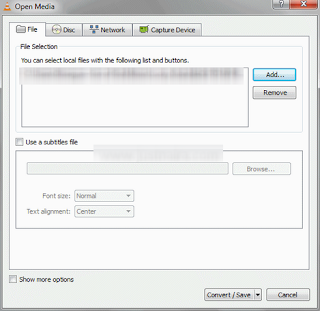
3) Click Add... and Select the Media Files you want to convert, then Click Convert / Save

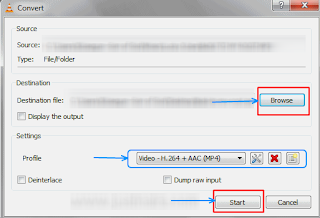
4) Click Browse and select the output Destination.

5) Change the Profile settings (the output format)
6) Click Start to begin the conversion.


Done! It may take time more than the conversion software.

If you like this then Subscribe us.
Don't forget to like us on Facebook,Twitter or G+.
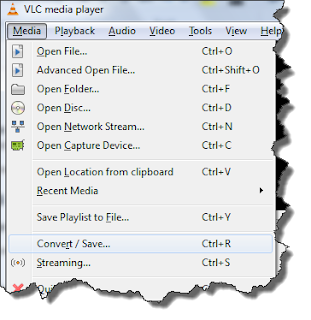
1) Launch VLC Media Player.
2) Click Media > Convert / Save ... or Simply press CTRL+R.


3) Click Add... and Select the Media Files you want to convert, then Click Convert / Save
4) Click Browse and select the output Destination.
5) Change the Profile settings (the output format)
6) Click Start to begin the conversion.
Done! It may take time more than the conversion software.


Read more : http://www.ztuts.com/2012/10/how-to-convert-multimedia-formats-using-vlc.html#ixzz2CY5XnecE
1) Launch VLC Media Player.
2) Click Media > Convert / Save ... or Simply press CTRL+R.


3) Click Add... and Select the Media Files you want to convert, then Click Convert / Save
4) Click Browse and select the output Destination.
5) Change the Profile settings (the output format)
6) Click Start to begin the conversion.
Done! It may take time more than the conversion software.


Read more : http://www.ztuts.com/2012/10/how-to-convert-multimedia-formats-using-vlc.html#ixzz2CY5XnecE


[Read More...]


Hide Private Data In Image


 Hi Friends, I know that everyone want to hide their personal data from others.Usually we use many software to hide our personal data.So today I am going to  introduce a cool trick to hide your private data in Image file.It's very useful and simple trick.Just follow these steps carefully :
--------------------------------------------------------------------------- 
Click here for more interesting stuff


---------------------------------------------------------------------------
1. At first copy any image and paste it in a folder in any drive.
2.Then make a rar or zip file that you want to hide and paste it in same folder,where you paste your image file.

in above screenshot I took a Koala.jpg image and hide.zip file.
3.now go to run and type cmd and press enter.

4.now go to that drive,where you make your folder.Then go to that folder,where you put your files.Now type this command in cmd
copy /b Koala.jpg + hide.zip Koala2.jpg

Here in place of Koala.jpg ,you have to put your image file and in place of hide.zip ,you have to put your zip file and in place of Koala2.jpg ,you have to put final image file name.

You will get output file like this


If you want  to get that file from this image then open it in winzip or winrar and extract that.
Good Luck.

If you like this then subscribe us.
Don't forget to like us  on Facebook,Twitter or G+.
[Read More...]


All in One Useful Tweaks For Your Pc


Hi Friends,Recently I posted  Latest and Working Homepage for Airtel. Today  I came on a Different subject.I was Working to collect some Useful Things For you.I collected some Useful PC Tweaks For You.
These All Collected From Different Sources.All Tweaks Are Surely Useful For you.You can Do many things With these Tweaks.So Start This Topic.
--------------------------------------------------------------------------- 
Click here for more interesting stuff


---------------------------------------------------------------------------
 All in One Useful Tweaks For Your Pc

Change The Name Of Recycle Bin

-At First open notepad and paste the following Code there. Then
-save this as recyclebin.reg. 
-Now click on the created file and then click yes.Now You can rename the recycle bin.
REGEDIT4                                                                                                                
[HKEY_CLASSES_ROOTCLSID{645FF040-5081-101B-                                      9F08-00AA002F954E}ShellFolder]                                                                          
"Attributes"=hex:50,01,00,20                                                                                  
"CallForAttributes"=dword:00000000                                                                     
  

 How to Change your windows Font


-At first right clcik on your desktop ,go to properties
-Then go to the appearance tab and select advanced
-Then scroll down to the part "Icon"
-You can change your windows font there...


How To Lock Your Computer Easily

-If you want to Lock Your Computer Immediately.

-Then Just Press Windows Key + L.

-Your PC will Be Lock Immediately. 


How To Set a Video as Desktop Background

1. First of all you need a VLC player installed in your OS to perform this task. If not than download the VLC player from internet and install it.

2. Run VLC media player,go to Settings-preferences-Interface-Main interfaces,then click on wxWidgets.Remove the tick on "Taskbar" and put a tick on "Systray icon".

3.Now go to Video -Output Modules-DirectX.On the bottom right put a tick on advanced options check box.You will now see some options.Put a tick on "Enable Wallpaper Mode "

4. Now,select playlist and put a check or tick on "Repeat current item ".

5. Press the Save button.Now close the Vlc player and run it again(to save the settings permanently).

Now play any video you would like to set as Wallpaper.Right click on the video and click on "Wallpaper".The video would be set as your wallpaper
.

If you LIke This Subscribe US.
Don't Forget To LIke  Us On Facebook,Twitter Or G+.
[Read More...]


Pen Drive Format Problem Solution


Hi friends,Some time when you try to format your Pen drive then you show a error
"Windows was unable to format".
If you want to get rid off with this problem then there is some Methods to Solve this problem.Read this topic carefully.


[Read More...]


How to Keep Track Of All Things You Do On Your Computer


There are so many things you do on the computer at the same time.
You watch videos on YouTube, reply to emails, write Word documents, upload photos, listen to MP3 music, play games, read blogs, chat with friends, search the web, share files and so much more. What are the common software or websites that you open and spend the most time on?
It can be quite difficult to calculate those numbers manually and it is better to use time tracking software.

So here is ManicTime free software programs that help you know exactly how you spend time in front of the computer – they record all computer activity including the websites you visit, the applications you run, etc.


ManicTime is a handy time tracking software for the Windows operating system. This tool will help you know exactly how you spend time in front of the computer – they record all computer activity including the websites you visit, the applications you run, etc.


When you start the program for the first time, you will see a tabbed interface that is divided into two main areas. The area at the top of the program window displays the current day and a time bar that visualizes computer, application and document usage on the computer.


Different programs and documents are displayed with different color sets. Hovering the mouse over them displays tooltip information about the program, time and duration as well as document titles and related information. The information that ManicTime present can be a real eye opener for some users. Maybe you realize that you spend to much time gaming on Facebook, chatting with your friends, listening music online or just watching movies on the computer.

Download ManicTime [ fully compatible with 32-bit and 64-bit editions of the Windows OS]
[Read More...]


How to Close all open applications with only just one click


We always wish to close all the open applications at the end of the day. Since Our habbits are of rarely rebooting our desktop, we manually close each application. Depending on the number of open applications this can be a waste of time.
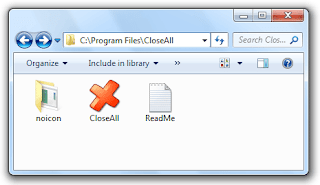
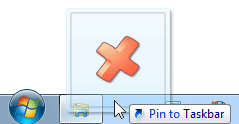
Thus, The people at NTWind Software have a perfect utility for this situation aptly called Close All Windows. Rather than manually closing each application, Only click the Close All Windows button on your taskbar.
 

In this article, We will show you how to install and configure Close All Windows on your computer for easy access on the taskbar.
To get started head over to NTWind Software and download the latest version of Close All Windows.
After the file is downloaded extract the CloseAll folder to a permanent location on your computer.  Since Close All Windows is an application I extracted the folder to C:\Program Files\ where applications are typically installed.


For easy access it is best to pin the application to the taskbar. Drag the Close All Windows application from the CloseAll folder onto the taskbar.


Hey, You are now most efficient. Keep Enjoying.
[Read More...]


How to Boot Or Start Computer Faster


Many computers take a lot of time to boot (or start ).This is due to many reasons.

Some slight changes can do wonders for your system:

1. Press start->run then type msconfig and press enter.

Go to the startup tab. Here you will see a list of startup items. These are all the programs that automatically start when you boot your PC. It is these that slow down the boot up process.


                                 So uncheck all the unwanted items like ms-office, messengers other utilities that u may not need at startup). Don't uncheck your antivirus software.

Restart your Pc to and see for yourself, your pc will now boot faster....  
    
2. A great new feature in Microsoft Windows XP is the ability to do a boot defragment. This places all boot files next to each other on the disk to allow for faster booting. By default this option is enabled, but on some systems it is not, so below is the information on how to turn it on:

Go to Start Menu and Click Run
Type in regedit then click ok
Find "HKEY_LOCAL_MACHINE\SOFTWARE\Microsoft\Dfrg\BootOpt imizeFunction"
Select "Enable" from the list on the right
Right on it and select "Modify"
Change the value to Y .
Reboot your Pc and see the change yourself.
 
3.SPEED UP BOOT BY DISABLING UNUSED PORTS.!!
You may have tried many tweaks like modifying windows XP start-up applications, prefetches, unload DLLs method, etc. And yes those methods do work for me.
                    I have just accidentally found out another way to give you an extra boost in windows XP's boot performance. This is done by disabling your unused devices in Device Manager. for example, if you don't have input devices that are connected to one of your USB's or COM ports, disabling them will give you an extra performance boost in booting. Go to Control Panel -> System -> Hardware tab -> device manager Disable devices that you don't use for your PC and then restart.
[Read More...]


Trick to Simply Change XP Start Button Name


http://www.coolstore888.com/communities/2/004/007/974/212/images/4549879824.jpg
I’ve read a number of articles on the internet about changing the text on the Start button in XP. On more than one occasion I’ve seen references to a five (5) letter limitation when the button is renamed.
I always wondered if this was true or just an assumption someone made because the default ‘start’ just happened to fit the button size. So, I decided to run a test and see if there really was a five character limit.
First of all just u need to do is download Resource hacker.
Resource HackerTM is a freeware utility to view, modify, rename, add, delete and extract resources in 32bit Windows executables and resource files (*.res). It incorporates an internal resource script compiler and decompiler and works on Win95, Win98, WinME, WinNT, Win2000 and WinXP operating systems.

ll its just 541Kb in the size.. Click here to go to the Download Page
First Step The first step is to make a backup copy of the file explorer.exe located at C:\Windows\explorer. Place it in a folder somewhere on your hard drive where it will be safe. Start Resource Hacker and open explorer.exe located at C:\Windows\explorer.exe
The category we are going to be using is String Table In Resource Hacker. Expand it by clicking the plus sign then navigate down to and expand string 37 followed by highlighting 1033. If you are using the Classic Layout rather than the XP Layout, use number 38. The right hand pane will display the stringtable as shown in Fig. 02. We’re going to modify item 578, currently showing the word “start” just as it displays on the current Start button.

There is no magic here. Just double click on the word “start” so that it’s highlighted, making sure the quotation marks are not part of the highlight. They need to remain in place, surrounding the new text that you’ll type. Go ahead and type your new entry

Second Step – Modify the Registry Now that the modified explorer.exe has been created it’s necessary to modify the registry so the file will be recognized when the user logs on to the system. If you don’t know how to access the registry I’m not sure this article is for you, but just in case it’s a temporary memory lapse, go to Start (soon to be something else) Run and type regedit in the Open: field. Navigate to:
HKEY_LOCAL_MACHINE\ SOFTWARE\ Microsoft\ Windows NT\ CurrentVersion\ Winlogon

the Right pane (Fig. 05), double click the Shell entry to open the Edit String dialog box as shown in Fig. 06. In Value data: line, enter the name that was used to save the modified explorer.exe file. Click OK.

Close Registry Editor and either log off the system and log back in, or reboot the entire system if that’s your preference. If all went as planned you should see your new Start button with the revised text.
[Read More...]


Increase Your RAM And System Speed


1). Start any application, say Word. Open some large documents.

2). Press
CTRL+SHIFT+ESC to open Windows Task Manager and click Processes tab and sort the list in descending order on Mem Usage.

You will notice that WINWORD.EXE will be somewhere at the top, using multiple MBs of memory.
3). Now switch to Word and simply minimize it. (Don't use the Minimize All Windows option of the task bar).
4). Now go back to the Windows Task Manager and see where WINWORD.EXE is listed. Most probably you will not find it at the top. You will typically have to scroll to the bottom of the list to find Word. Now check out the amount of RAM it is using. Surprised? The memory utilization has reduced by a huge amount.
5). Minimize each application that you are currently not working on by clicking on the Minimize button & you can increase the amount of available RAM by a substantial margin. Depending upon the number and type of applications you use together, the difference can be as much as 50 percent of extra RAM.
                In any multitasking system, minimizing an application means that it won't be utilized by the user right now. Therefore, the OS automatically makes the application use virtual memory & keeps bare minimum amounts of the code in physical RAM.
[Read More...]


How Operate Ur PC without MOUSE


Press

Shift+Alt+NumLock

Then use num keys to operate.

Enjoy Friends
[Read More...]


BLOCK THE VIRUS WHICH MAKES DO NOT SHOW HIDDEN FILES OPTION


Most of u have faced this problem....wen u activate the option "show hidden files" it will not be activated...this is due to virus.
now i m goin to show u how to cope up with this prblm..

1. Go To... Start>run
2. Enter "regedit"
3. In The Registry editor Follow The Steps
hkey_local_machine>software>microsoft windows>currentversion>explorer>advanced>folder>hidden>showall
4. Now go to right side registry list checkedvalue double click 4 edit
5. chage vale data 1 close registry editor..

finishe...now u can activate the option...
[Read More...]


Related Posts Plugin for WordPress, Blogger...
 

Followers

Grab This Gadget »

Return to top of page Copyright © | TwistIdea -All Rights Reserved